How to run a script on 50* Linux devices at once
Run the same shell script, with its files and parameters, on many Ubuntu, Debian and Raspberry Pi devices at once from one dashboard, without SSH: upload it once, run it on every device, watch each device's output live and re-run the ones that failed.
Works on Ubuntu 22.04, 24.04 and 26.04, Debian 12 and 13, and Raspberry Pi OS, on amd64, arm64 and armhf. Last checked 2026-10-31.
Why a loop over SSH does not scale
A for-loop over SSH works until a device sits behind NAT, is offline, or asks for a password. Then nobody knows which devices ran the script and which did not, and the output is spread over terminals that are already closed.
With KinuxOTA, a small agent on each device (gateways, kiosks, servers and Raspberry Pis) connects out to one web dashboard. You start it once, on every device, and see the result of each one: no SSH, no open ports, no VPN and no inventory file to keep up to date.
What you need
- Linux devices: Ubuntu 22.04, 24.04 and 26.04, Debian 12 and 13, and Raspberry Pi OS, on amd64, arm64 and armhf.
- sudo on each device once, to install the agent, and an outgoing internet connection.
- A free KinuxOTA account.
Run a script on all your devices, step by step
1. Create a free account
Sign up at https://www.kinuxota.com/signup/ and confirm your email address.
2. Install the agent on every Linux device
In the dashboard, click Add device, give the device a name and copy the install command it shows. Run it on the device: it adds the signed KinuxOTA apt repository, installs the agent as a systemd service and enrolls the device with its own key. The device appears as Online within seconds. Repeat for each device.
curl -fsSL https://www.kinuxota.com/install.sh | sudo sh -s -- --key <KEY>3. Create the script
Open Scripts and click New script: start blank, from a template, or upload files or a whole folder from your computer (configuration files, .deb packages, firmware, any file type; up to 500 files and 250 MB). The entry file is the one that runs; files marked executable can be run by it.
4. Use parameters for what changes per run
Declare parameters such as a version or a URL; the script reads them as environment variables. Secret parameters are shown as ****** in the output and not kept once the devices have them. Every run also sets KINUXOTA_DEVICE_NAME and KINUXOTA_DEVICE_ID. echo "Deploying $APP_VERSION to $KINUXOTA_DEVICE_NAME"; ./install.sh "$APP_VERSION"
echo "Deploying $APP_VERSION to $KINUXOTA_DEVICE_NAME" ./install.sh "$APP_VERSION"5. Run it on many devices
Click Run, tick the devices or Select all online (up to 100 per run), fill in the parameters and click Run on N devices. Under Advanced you choose when to stop the script, how long to wait for offline devices (1 hour, 1 day or 7 days), or to copy the files now and start later.
6. Watch every device's output live
The run page shows each device's status, exit code and output as it arrives, so you see which devices are done, which are still working and what each one printed.
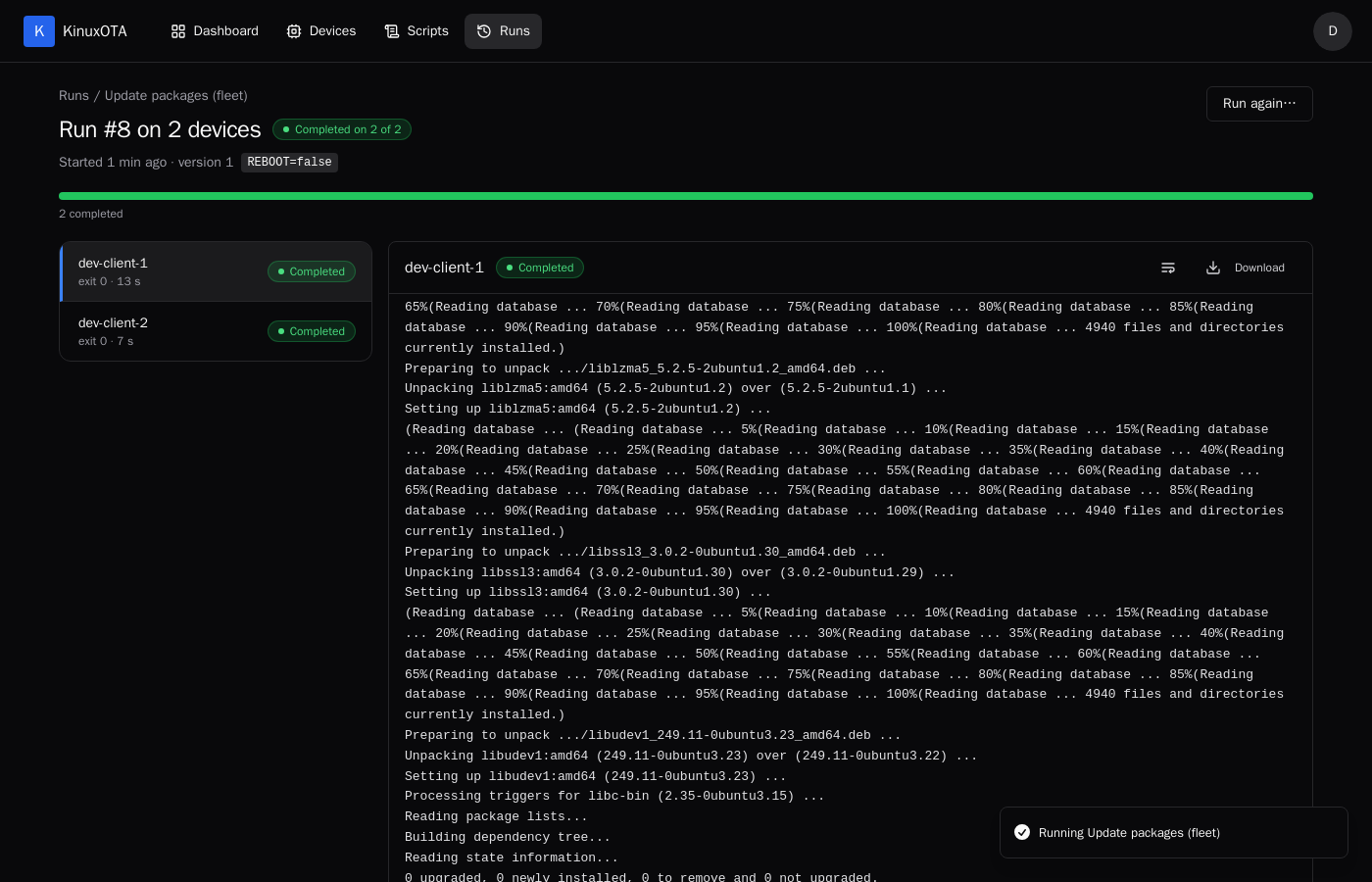
7. Re-run only the devices that failed
A device that failed shows Failed with its exit code and the reason in its output. Fix the cause and click Re-run failed: the script runs again on those devices only.
Before you run a script on many devices
It runs as root
The script runs as root, in a private folder that holds its files and is removed afterwards. Every file's checksum is verified first. Try a new script on one device before all of them.
Make it safe to run twice
Re-run failed, and devices that come back online, run the script again. Write it so a second run does no harm: check before you change, and use non-interactive commands (apt-get -y, no prompts).
The exit code decides the status
Exit code 0 is Completed, anything else Failed. End with a check, such as systemctl is-active myapp, so a broken result shows as Failed instead of hiding in the output.
Frequently asked questions
Which interpreter runs the script?
The entry file runs directly when it starts with #!, so bash, sh, python3 or any interpreter installed on the device works; otherwise it runs with bash.
How much output is kept?
Up to 10 MB per device per run, kept with the run's history; each device's output can be downloaded.
Can I do this on 10, 100 or 1,000 Linux devices?
One run reaches up to 100 devices, and you can start as many runs as you need. During the pilot program an account can add up to 3 devices for now; the steps are the same for 3 devices or 300.
What happens to devices that are offline?
They do not fail the run. They show Waiting for device and run it when they come online, within the waiting time you choose (1 hour, 1 day or 7 days); after that they show Expired.
Do I need SSH, open ports or a VPN?
No. The agent opens an outgoing TLS connection to KinuxOTA, so devices behind NAT and firewalls work without inbound ports, SSH or a VPN.
Can I run it on a schedule?
Not yet: today you start each run yourself. Scheduled runs are not available.
Try it on your own devices
Free during the pilot. The full reference for scripts and runs is in the documentation.
* During the pilot program an account can add up to 3 devices for now. The steps are the same for 3 devices or 300.