How to update 50* Ubuntu devices at once
Update apt packages on many Ubuntu devices at once from one dashboard, without SSH or a VPN: install a small agent, run the Update packages script on every device, watch the output and re-run only the devices that failed.
Works on Ubuntu 22.04, 24.04 and 26.04, on amd64, arm64 and armhf. Last checked 2026-10-31.
Why updating Ubuntu devices one by one does not scale
Logging in to every Ubuntu machine with SSH to run apt works for two machines, not for fifty: the devices sit behind NAT and firewalls, some are offline when you get to them, and nobody knows afterwards which ones actually upgraded.
With KinuxOTA, a small agent on each device (industrial PCs, kiosks, edge gateways and servers) connects out to one web dashboard. You start the update once, on every device, and see the result of each one: no SSH, no open ports, no VPN and no inventory file to keep up to date.
What you need
- Ubuntu devices: Ubuntu 22.04, 24.04 and 26.04, on amd64, arm64 and armhf.
- sudo on each device once, to install the agent, and an outgoing internet connection.
- A free KinuxOTA account.
Update all your Ubuntu devices, step by step
1. Create a free account
Sign up at https://www.kinuxota.com/signup/ and confirm your email address.
2. Install the agent on every Ubuntu device
In the dashboard, click Add device, give the device a name and copy the install command it shows. Run it on the device: it adds the signed KinuxOTA apt repository, installs the agent as a systemd service and enrolls the device with its own key. The device appears as Online within seconds. Repeat for each device.
curl -fsSL https://www.kinuxota.com/install.sh | sudo sh -s -- --key <KEY>3. Create the Update packages script
Open Scripts, click New script, choose Template and pick Update packages. The script runs apt-get update, apt-get upgrade (keeping configuration files you changed) and apt-get autoremove, then says whether the device needs a reboot.
4. Run it on all your Ubuntu devices at once
Click Run, then Select all online (or tick the devices you want, up to 100 per run). Turn on Reboot if required if the devices may restart, and click Run on N devices. Devices that are offline wait and update when they come back.
5. Watch every device's output live
The run page shows each device's status, exit code and output as it arrives, so you see which devices are done, which are still upgrading and what apt printed on each.
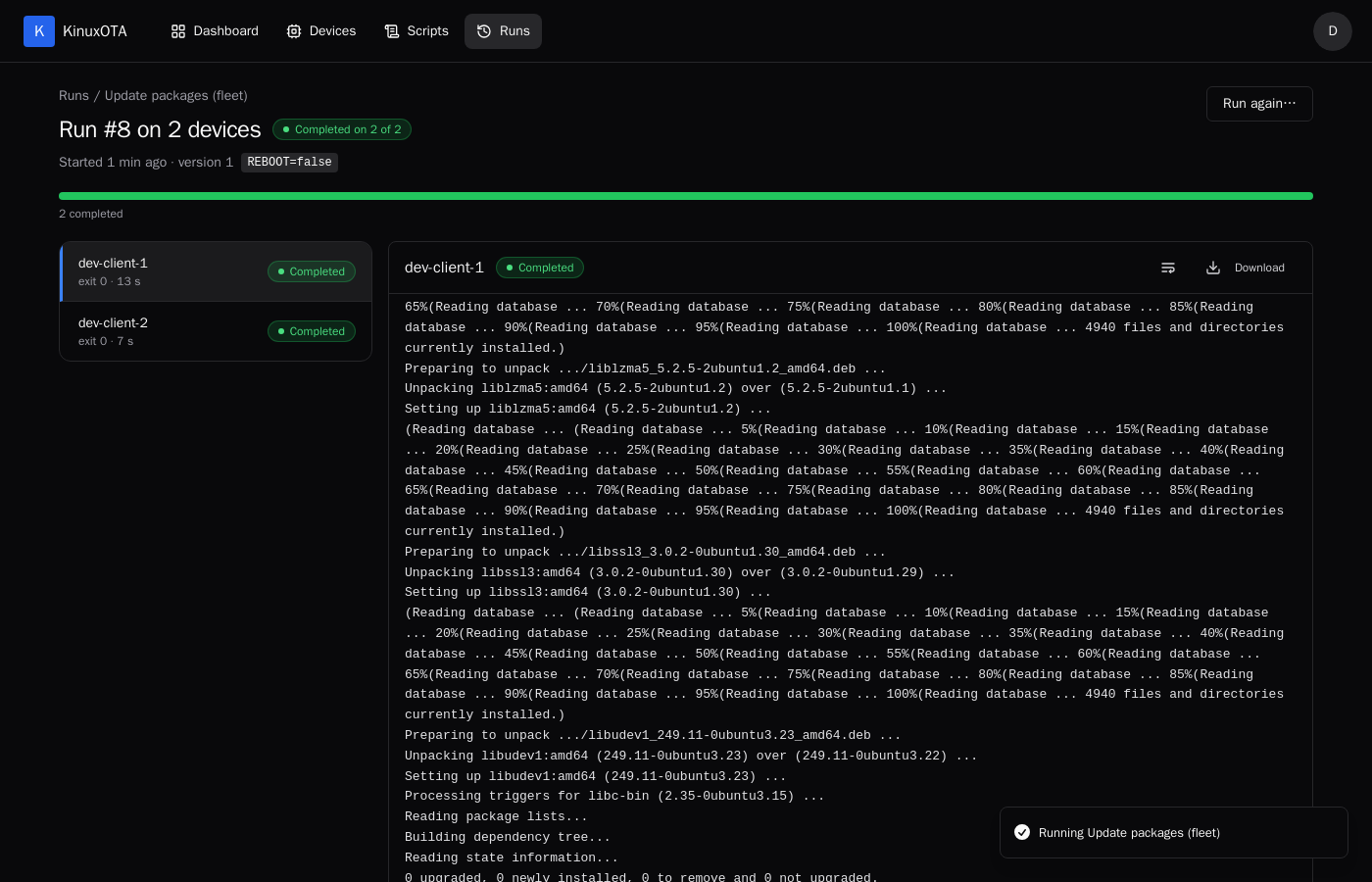
6. Re-run only the devices that failed
A device whose update failed (no network, a held apt lock, a full disk) shows Failed with the reason in its output. Fix the cause and click Re-run failed: the update runs again on those devices only.
Before you update many Ubuntu devices
unattended-upgrades may hold the apt lock
Ubuntu installs unattended-upgrades by default, and it may be running when your update starts. apt then fails with "Could not get lock /var/lib/dpkg/lock-frontend". Those devices show as Failed with that line in their output; Re-run failed a few minutes later updates them.
Phased updates are kept back
Ubuntu releases some updates to a growing share of machines over a few days (phased updates). apt then lists them as "deferred due to phasing" on some devices and installs them on others. That is expected: a later run installs them once they reach that device.
Kernel updates need a reboot
When an update needs a reboot, Ubuntu writes /var/run/reboot-required. The Update packages script prints which packages asked for it, and reboots the device one minute later only when you set Reboot if required.
Frequently asked questions
Does this replace unattended-upgrades?
No, it works next to it. unattended-upgrades installs security updates on its own schedule; a KinuxOTA run installs every pending update on the devices you choose, when you choose, and shows you the result of each device.
Which Ubuntu versions are supported?
Ubuntu 22.04, 24.04 and 26.04 on amd64, arm64 and armhf.
Can I update 10, 100 or 1,000 Ubuntu devices this way?
One run reaches up to 100 devices, and you can start as many runs as you need. During the pilot program an account can add up to 3 devices for now; the steps are the same for 3 devices or 300.
What happens to devices that are offline?
They do not fail the run. They show Waiting for device and run the update when they come online, within the waiting time you choose (1 hour, 1 day or 7 days); after that they show Expired.
Do I need SSH, open ports or a VPN?
No. The agent opens an outgoing TLS connection to KinuxOTA, so devices behind NAT and firewalls work without inbound ports, SSH or a VPN.
Can I run the update on a schedule?
Not yet: today you start each run yourself. Scheduled runs are not available.
Try it on your own devices
Free during the pilot. The full reference for scripts and runs is in the documentation.
* During the pilot program an account can add up to 3 devices for now. The steps are the same for 3 devices or 300.