How to check disk space and memory on 50* Linux devices
See disk space, memory, CPU and uptime of many Ubuntu, Debian and Raspberry Pi devices from one dashboard, without SSH: ping one device, check all of them with one script, collect a full diagnostics report, and free space where it is full.
Works on Ubuntu 22.04, 24.04 and 26.04, Debian 12 and 13, and Raspberry Pi OS, on amd64, arm64 and armhf. Last checked 2026-10-31.
Why full disks are found too late
A full disk stops updates, logs and databases. On devices nobody logs in to, it is usually found when something has already broken.
With KinuxOTA, a small agent on each device (gateways, kiosks, servers and Raspberry Pis) connects out to one web dashboard. You start it once, on every device, and see the result of each one: no SSH, no open ports, no VPN and no inventory file to keep up to date.
What you need
- Linux devices: Ubuntu 22.04, 24.04 and 26.04, Debian 12 and 13, and Raspberry Pi OS, on amd64, arm64 and armhf.
- sudo on each device once, to install the agent, and an outgoing internet connection.
- A free KinuxOTA account.
Check all your devices, step by step
1. Create a free account
Sign up at https://www.kinuxota.com/signup/ and confirm your email address.
2. Install the agent on every Linux device
In the dashboard, click Add device, give the device a name and copy the install command it shows. Run it on the device: it adds the signed KinuxOTA apt repository, installs the agent as a systemd service and enrolls the device with its own key. The device appears as Online within seconds. Repeat for each device.
curl -fsSL https://www.kinuxota.com/install.sh | sudo sh -s -- --key <KEY>3. One device: Ping
On a device's page, Ping Device asks the agent for a health report: whether it is online, CPU, memory and disk use, and uptime.
4. All devices: one script
Create a script with these lines and run it on all devices; each device's output appears next to its name. df -h -x tmpfs -x devtmpfs; free -m
df -h -x tmpfs -x devtmpfs free -m5. Watch every device's output live
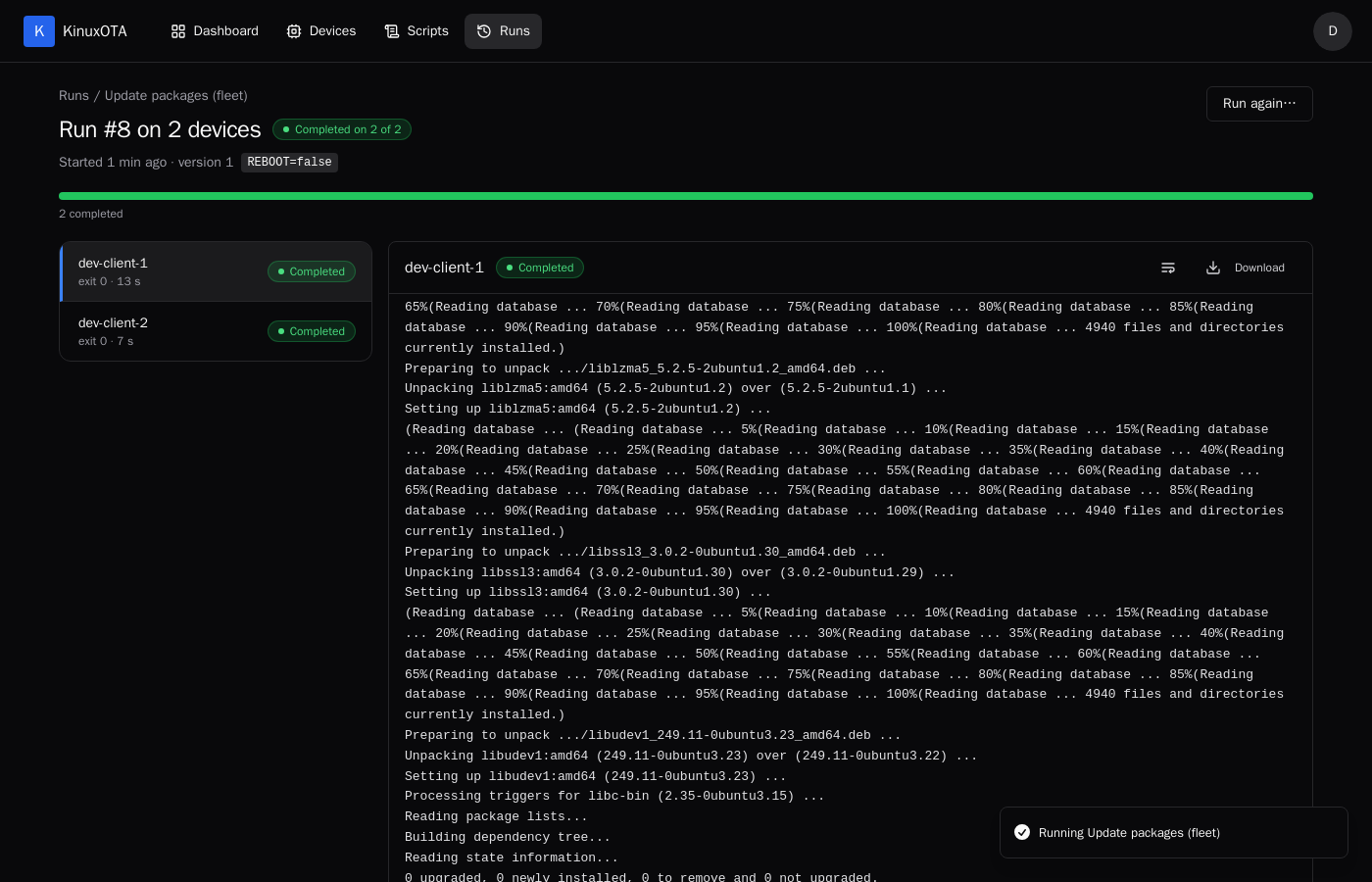
The run page shows each device's status, exit code and output as it arrives, so you see which devices are done, which are still working and what each one printed.
6. A full report: the Collect diagnostics template
Choose the Collect diagnostics template and run it where something looks wrong: system, disk, memory, network, failed services, kernel messages and the journal's warnings from the last hour, day or week, in one report you can download per device.
7. Free space where it is full
Run a clean-up on the devices that need it, then check again. apt-get clean; journalctl --vacuum-size=200M
apt-get clean
journalctl --vacuum-size=200M
Before you rely on it
No alerts yet
KinuxOTA shows a device's health when you ask for it; it does not warn you when a disk fills up. Alerts are planned. Until then, check regularly, or let a script you run send its own warning.
Look at the right filesystem
On a Raspberry Pi the SD card is /. On gateways and servers, data often sits on /var or a separate /data disk: check every mounted filesystem, not only /.
Frequently asked questions
Does KinuxOTA keep a history of disk and memory?
Health reports are shown when you ping and not stored. The output of each script run is kept with the run, so a check you run regularly leaves a history you can compare.
Can I do this on 10, 100 or 1,000 Linux devices?
One run reaches up to 100 devices, and you can start as many runs as you need. During the pilot program an account can add up to 3 devices for now; the steps are the same for 3 devices or 300.
What happens to devices that are offline?
They do not fail the run. They show Waiting for device and run it when they come online, within the waiting time you choose (1 hour, 1 day or 7 days); after that they show Expired.
Do I need SSH, open ports or a VPN?
No. The agent opens an outgoing TLS connection to KinuxOTA, so devices behind NAT and firewalls work without inbound ports, SSH or a VPN.
Can I run it on a schedule?
Not yet: today you start each run yourself. Scheduled runs are not available.
Try it on your own devices
Free during the pilot. The full reference for scripts and runs is in the documentation.
* During the pilot program an account can add up to 3 devices for now. The steps are the same for 3 devices or 300.